
Installing the CMB-03 GSM/GPRS telemetry module driver
This guide illustrates installation in Windows 7. The original driver package is intended for Windows 98, ME, XP, Vista and 7. Installation screens and requirements may differ in other Windows versions.
1. Download and extract the drivers
Download the appropriate CMB-03 driver ZIP archive from COMMON and extract it to a folder of your choice. Windows XP and later include built-in ZIP extraction. If necessary, use an archive utility such as 7-Zip, WinRAR or WinZip.
2. Connect the telemetry module
Connect the module to a USB port. Windows will display a notification indicating that it is attempting to install the device driver automatically.
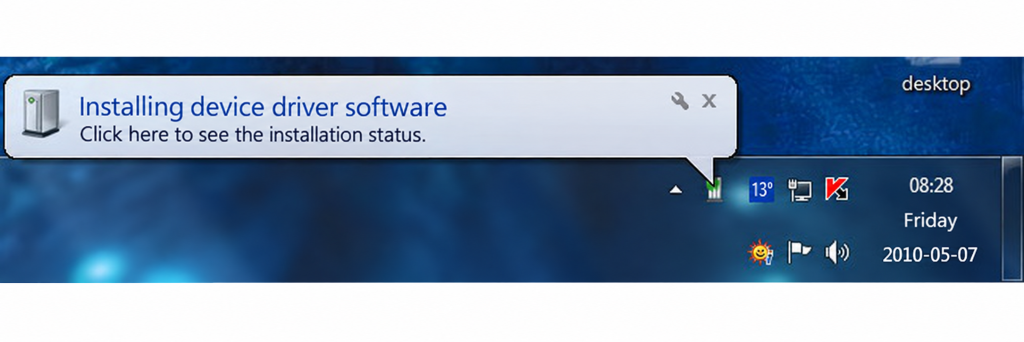
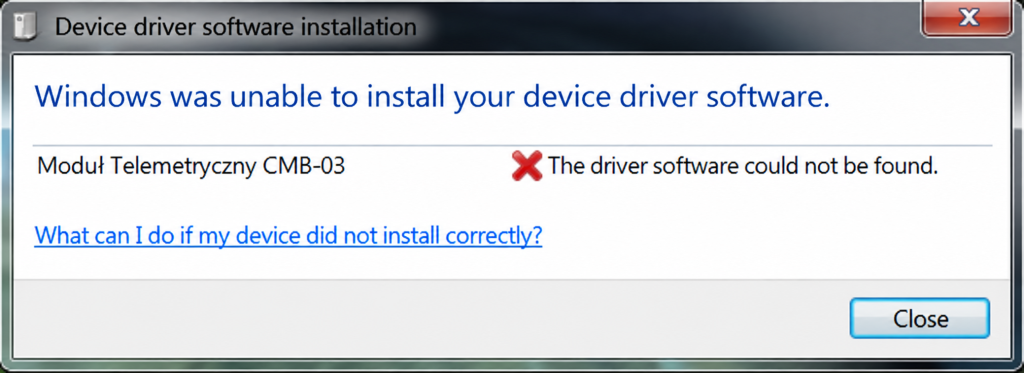
In the example shown, automatic installation fails because Windows cannot find a suitable driver.
3. Open Device Manager
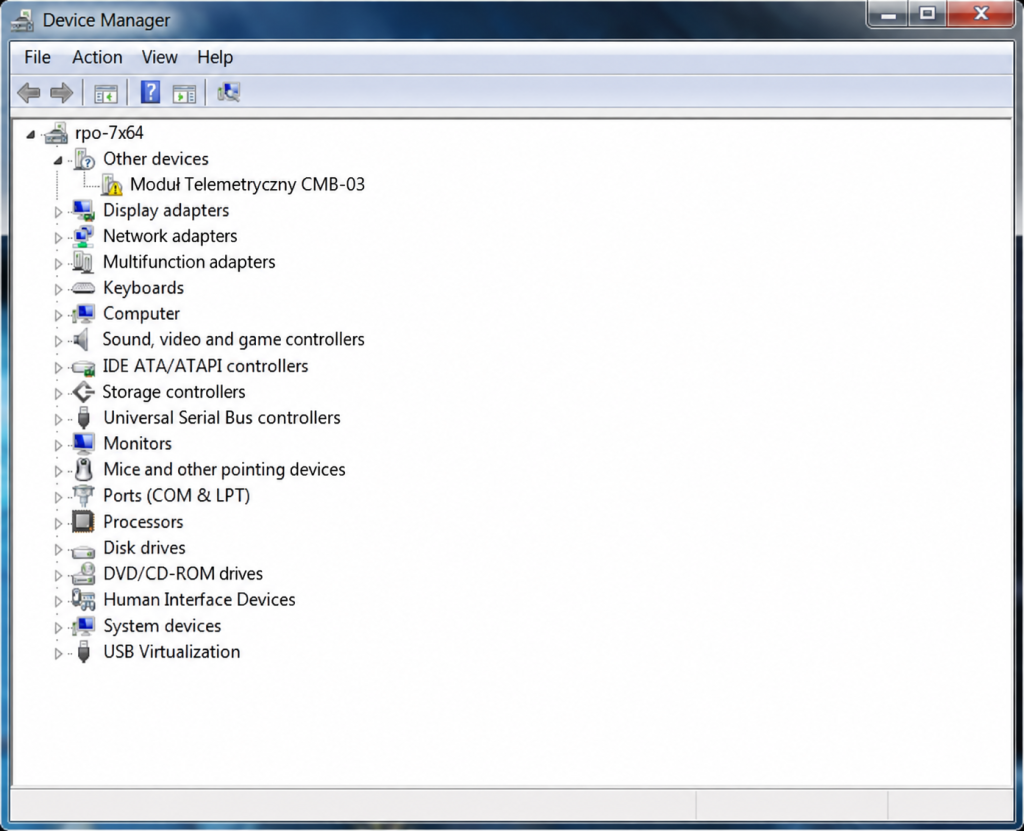
Press Windows + R, enter devmgmt.msc, and press Enter. Alternatively, right-click Computer, select Manage, and open System Tools → Device Manager.
Use an account with local administrator privileges to install the drivers.
4. Install the USB converter driver
Under Other devices, right-click Moduł Telemetryczny CMB-03 and select Update Driver Software…. This device name is supplied by the device or driver and may remain in Polish on an English installation of Windows.
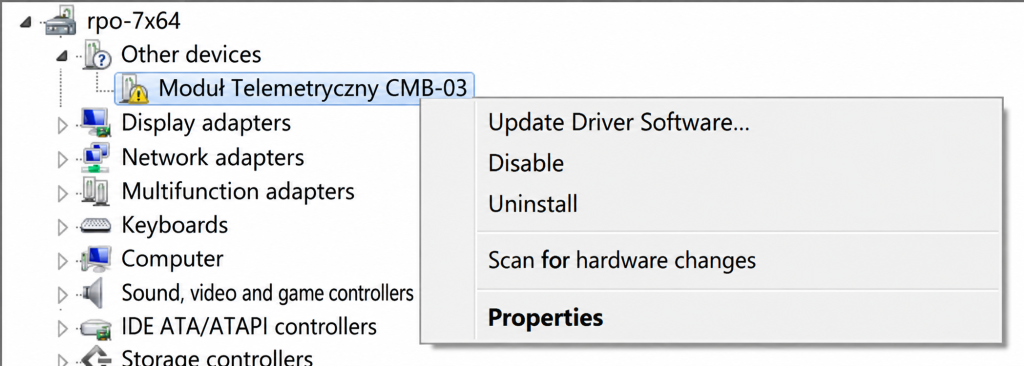
Select Browse my computer for driver software and specify the folder containing the extracted drivers. Follow the installation wizard.
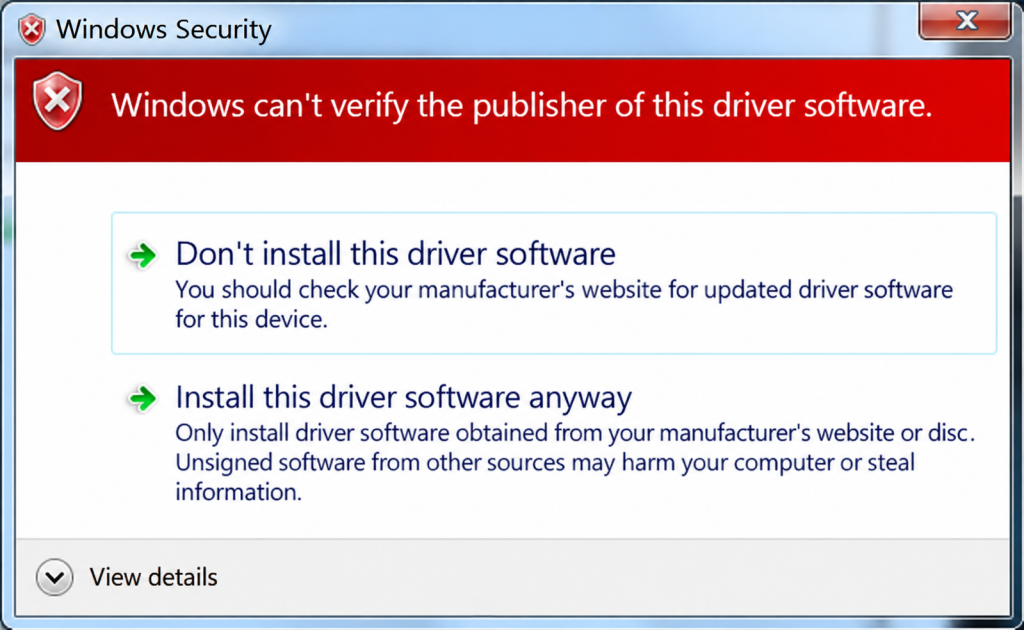
5. Confirm the driver publisher warning
The older driver shown in this guide is not digitally signed. Windows therefore displays a publisher verification warning. If you are installing the correct driver obtained from COMMON, select Install this driver software anyway.
6. Complete the converter installation
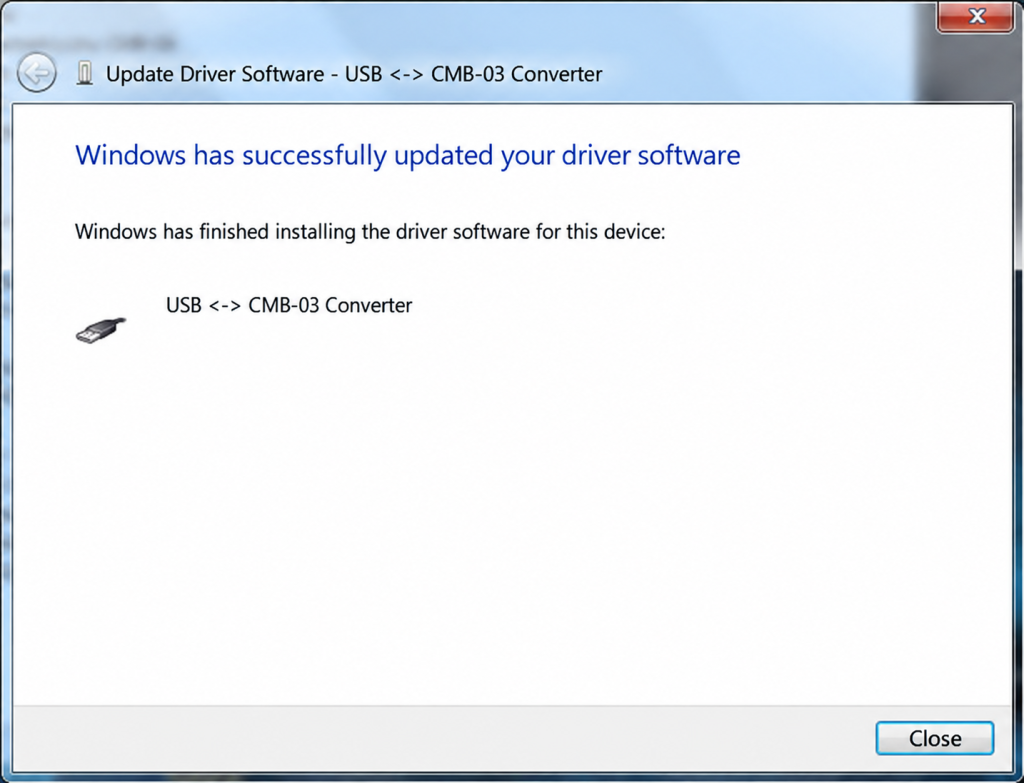
Windows will confirm that the driver for USB <-> CMB-03 Converter has been installed successfully. Click Close.
7. Check the devices in Device Manager
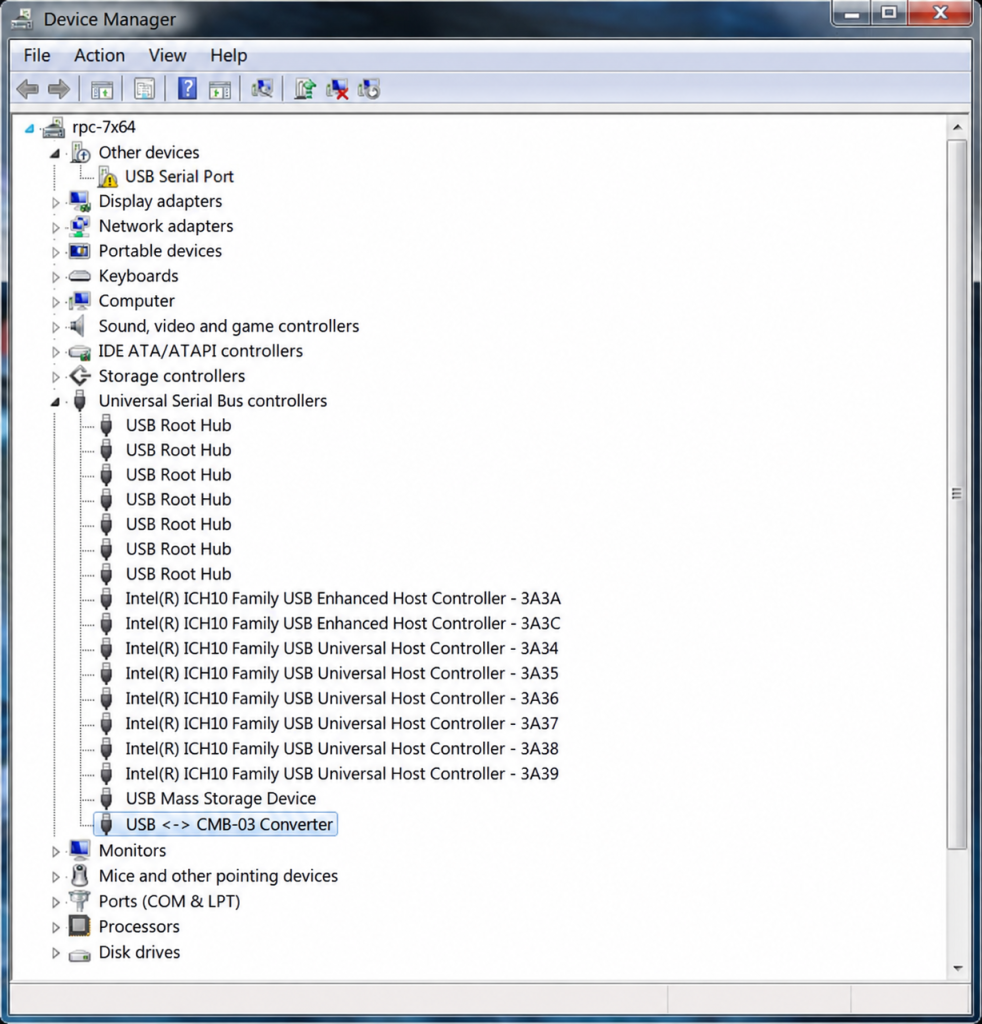
Under Universal Serial Bus controllers, confirm that USB <-> CMB-03 Converter is listed. A second device, USB Serial Port, should appear under Other devices.
8. Install the serial port driver
Right-click USB Serial Port and repeat the manual driver installation using the same extracted driver folder. The publisher verification warning may appear again.
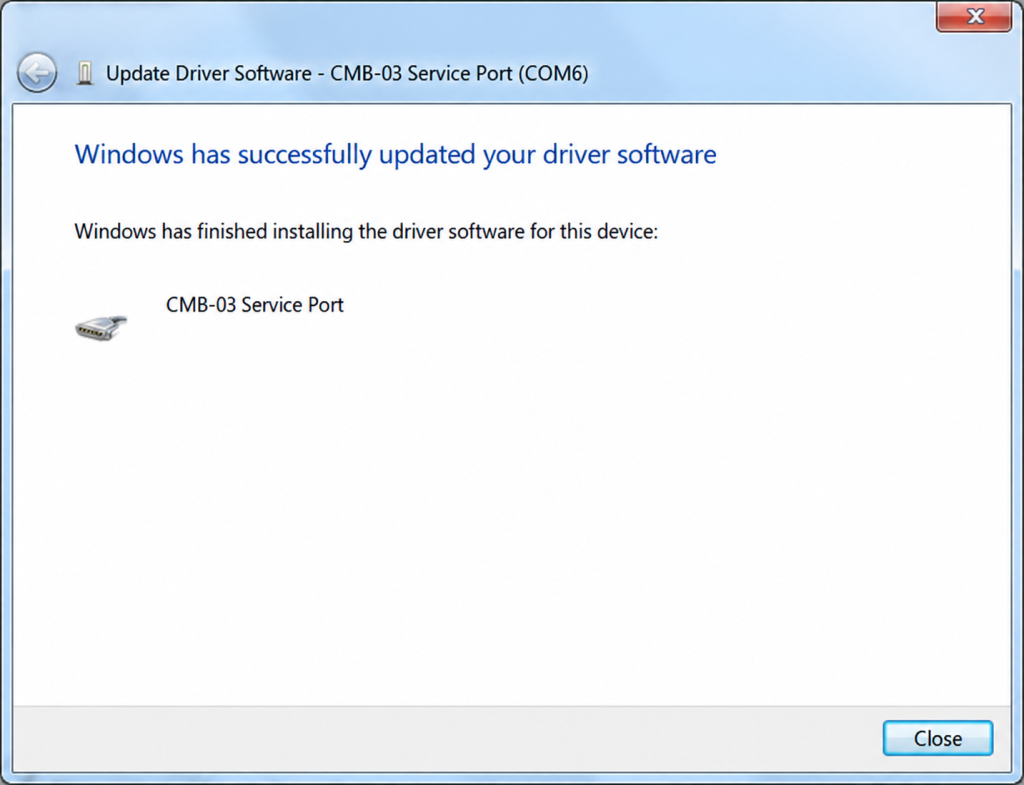
Windows will then confirm successful installation of CMB-03 Service Port.
9. Check the assigned COM port
Expand Ports (COM & LPT) in Device Manager. Confirm that CMB-03 Service Port is listed and note its assigned COM port number. In this example, it is COM6; your computer may assign a different number.
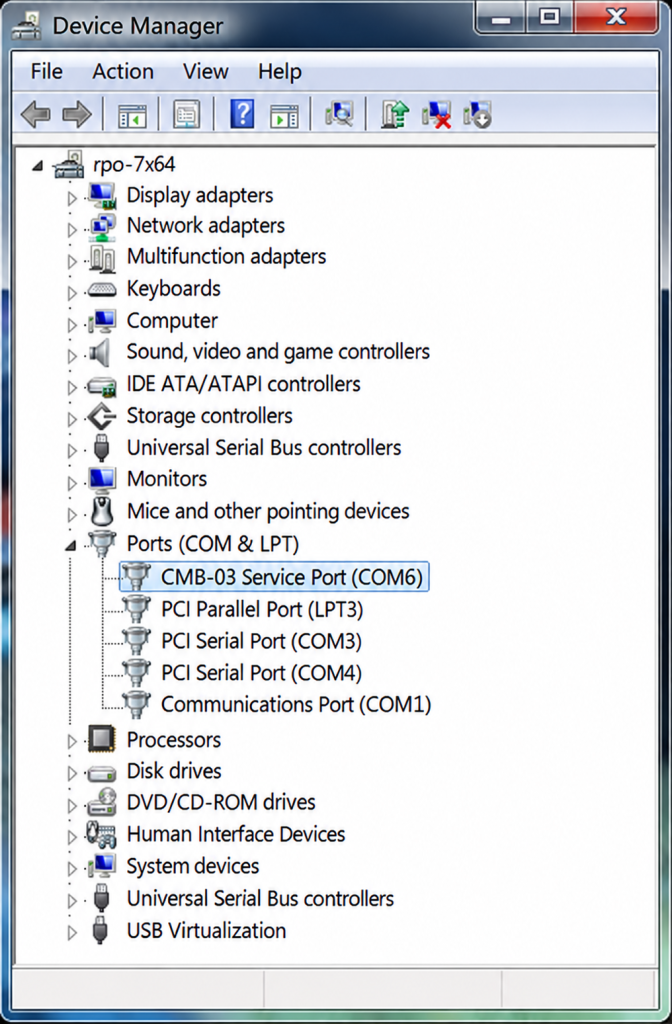
To change the port number, see How to change a COM port number in Windows 7