
Changing COM Port Numbers in Windows 7
When you install drivers for a new USB device, Windows may assign it a high COM port number. To change it to a lower number, follow these steps:
- Open Device Manager (for example, click Start, select Run, and enter devmgmt.msc).
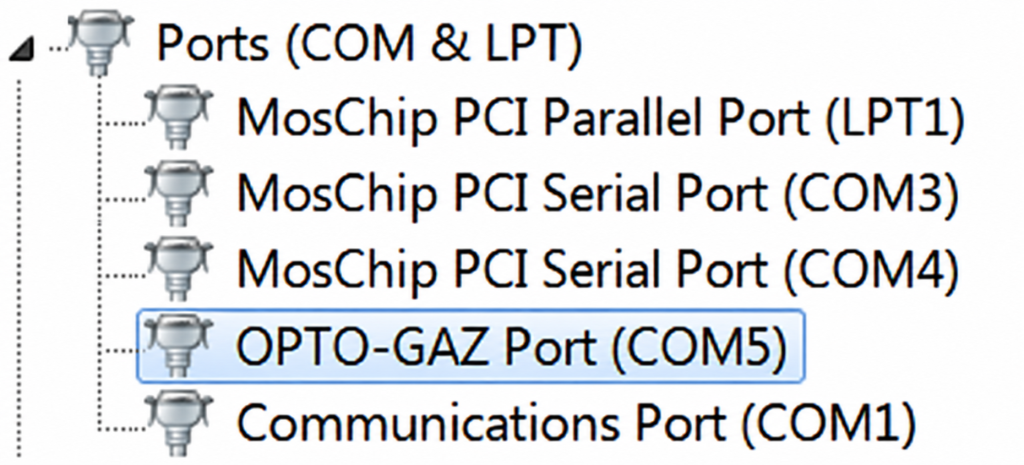
Open Device Manager. - Right-click the device whose COM port number you want to change and select Properties. In this example, the OPTO-GAZ interface will be reassigned from COM5 to COM2.
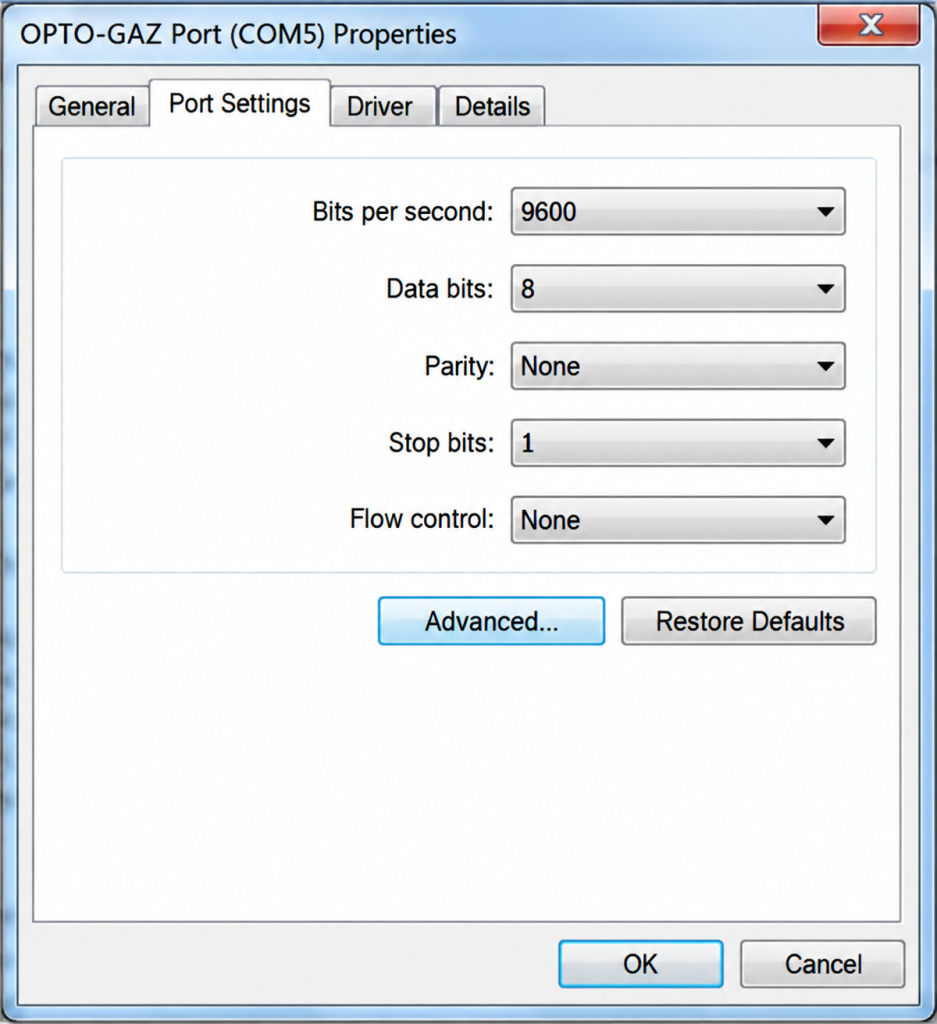
Open the properties of the OPTO-GAZ interface. - Open the Port Settings tab and click Advanced.
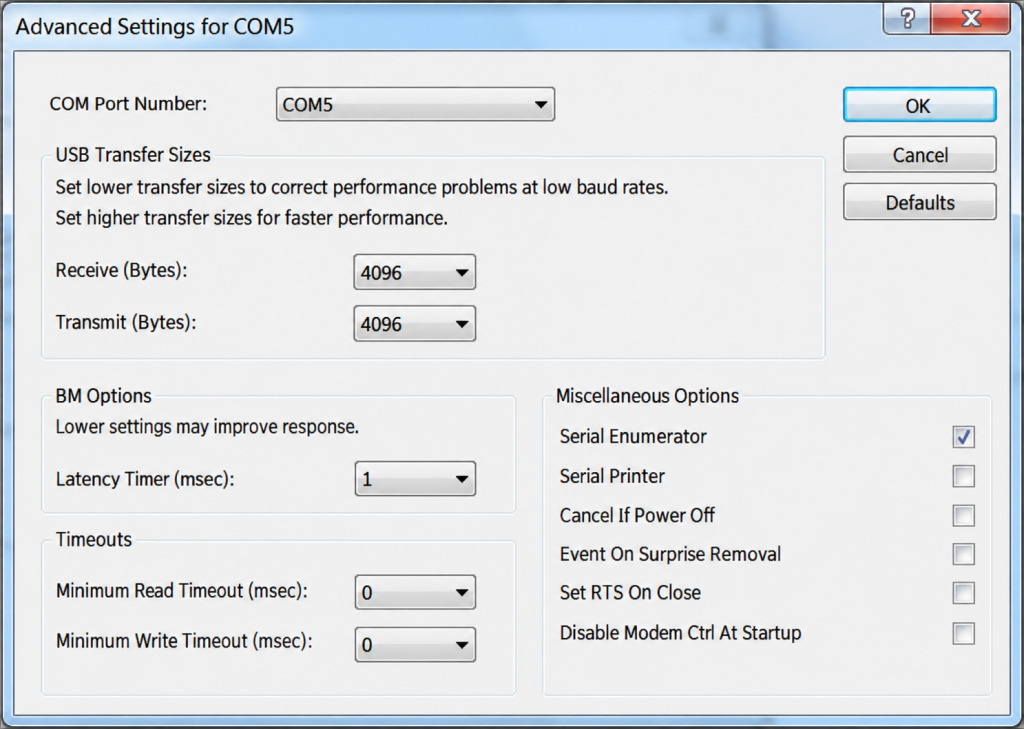
Open the COM Port Number list in Advanced Settings. - Select the desired number from the COM Port Number drop-down list. Choose an available port, avoiding those marked “in use”. In this example, COM2 is available and will be assigned to the OPTO-GAZ interface.
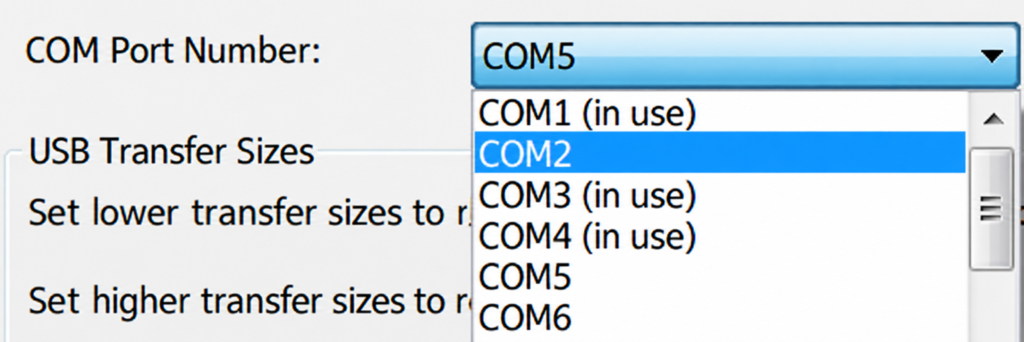
Select the available COM2 port. - Click OK to confirm the change. COM5 will become available for another device, and COM2 will be assigned to the OPTO-GAZ interface.
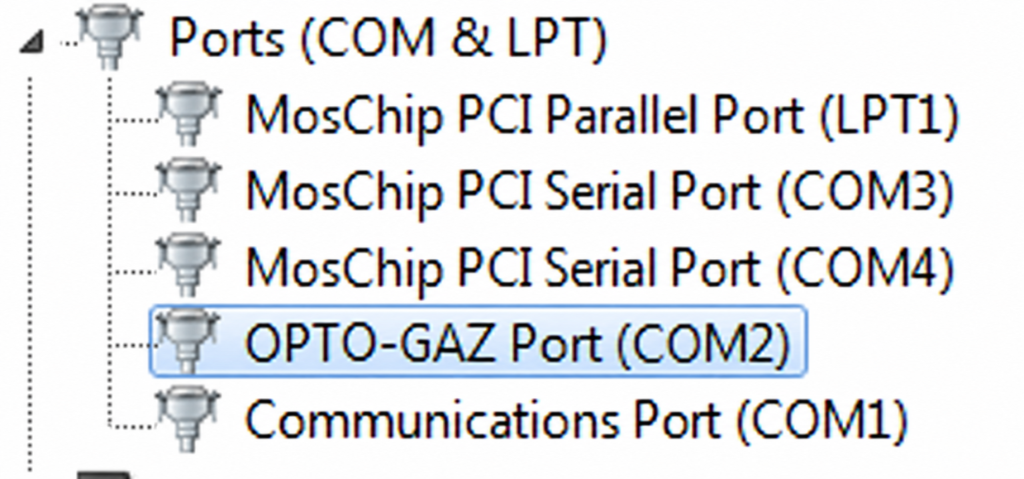
Confirm the change from COM5 to COM2.
Original guide by Radosław Podgórski. English translation and editorial adaptation.
Source: Podmienianie portów COM na podstawie Windows 7 . Illustrations are English-localized versions of the original screenshots.